

Showcase settings
Once you have uploaded a 3D scene, you can modify the showcase settings from the sidebar. All changes you make will be applied live in the viewport for you to test.
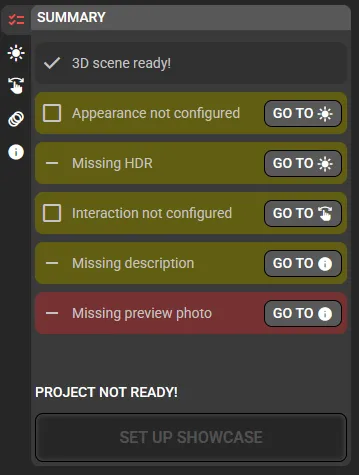
The Summary section lists a series of actions or recommendations to optimally adjust your showcase. Items marked in red are required, while yellow ones are optional suggestions. You can manually check off items using the checkboxes as a To-Do list.
Go through each of the vertical tabs and customize the project to your liking. Below we describe the different options and how they interact with each other. Once you are satisfied with the result, continue with set up showcase.
 Appearance
Section titled “ Appearance”In this tab, you can control various visual aspects of the scene, including lighting sources and camera properties.
Camera exposure
Section titled “Camera exposure”In Edro, Camera exposure is a unitless value that multiplies the calculated luminous flux (in lumens) for each pixel in the viewport, so that the result falls within the visible range in hardware rendering, that is, between 0 (black) and 1 (white). For example, if we have a Camera exposure of 0.001, pure white is reached with a luminous flux of 1000 lumens (1000 x 0.001 = 1).
You can change the Camera exposure to adapt it to your scene (interior/exterior, day/night, etc.) without sacrificing the physical realism of your original scene.
Camera bloom
Section titled “Camera bloom”As mentioned above, the luminosity of each pixel is mapped to the 0-1 interval. Camera bloom is a post-processing effect that generates glows on pixels whose luminosity exceeds 1.
Background
Section titled “Background”This dropdown menu allows you to change the scene background. You can choose between:
- Diffuse IBL. Uses the 360° panoramic image provided in the Ambient Lighting section, but processed for use as diffused light.
- Specular IBL. Uses the 360° panoramic image provided in the Ambient Lighting section.
- Color. Displays a specific color picker.
- Transparent. Use this in combination with the embed code available in the Set up showcase dialog to insert your Edro showcase into any web page in a visually integrated way.
Ambient lighting
Section titled “Ambient lighting”Defines a light source that illuminates the scene from all directions. You can upload a 360º photo in panoramic HDR format to define the intensity and color of the ambient light from each angle. By default, a neutral HDR is included which illuminates with a white light, predominantly from above.
Directional lighting
Section titled “Directional lighting”Defines a directional light source that illuminates the scene with parallel rays (similar to the Sun seen from the Earth).
 Interaction
Section titled “ Interaction”Edro allows you to choose between multiple interaction modes. These defines how the end user interacts with your scene:
The user moves the camera freely around a pivot point. User can use W A S D and the arrow keys to rotate the camera, or click/tap. The mouse wheel can also be used for zoom in/out.
You may limit the viewing angles to a specific interval, preventing the user from seeing the scene from angles that are not of interest.
The Auto rotate speed option makes the scene rotate on its own when the user is not interacting. This can be useful to show the user that the scene is rendered live and encourage them to interact with it.
The Zoom with mouse wheel option, when disabled, prevents the scene from capturing mouse wheel (used for zoom in / zoom out). If you plan to embed the scene in a web page with scrolling, we recommend disabling this option for a better user experience.
First person
Section titled “First person”The user moves the camera as if in first person. They can use W A S D and the arrow keys to move. To rotate the camera, the user can click/tap.
Fixed camera
Section titled “Fixed camera”You can include cameras in your 3D scene using editing software (Blender, etc.), and select one here to lock the viewer to your preferred camera. Combined with camera animations, you can fully control the showcase experience.
 Animations
Section titled “ Animations”If your scene includes animations, in this section you can see each one listed and configure how you want them to interact in the live showcase:
- Do not play. This animation will never play.
- Play once. This animation will play once when the user first loads the scene. If the user reloads the page, the animation will play again from start.
- Play on loop. This animation will play in a continuous loop from the moment the user loads the scene.
- Sync with scroll. This animation will play based on the user’s vertical scroll on the web page where the Edro showcase is embedded. This way, you can create interactive experiences that respond to user scrolling.
 UI & Metadata
Section titled “ UI & Metadata”In this section, you can control the appearance and content of the UI that appears when the user interacts with the scene, as well as the showcase link metadata.
The Autorun option controls whether the 3D scene will begin loading automatically when the link/embed is opened, or require the user to click the Play button. We recommend disabling this option if the 3D scene is particularly large or will be embedded on a page along with other 3D scenes.
In the Description field, we recommend including explanatory text about the 3D scene, including authors or license. This text will be used as the meta description in your showcase, so it will appear on social media, search engines, etc., when you share your showcase link. Additionally, the Take photo button takes a screenshot of your 3D scene to also be included as a meta image in your showcase.