

Upload 3D scene
What this covers
Section titled “What this covers”This page describes how the “Upload 3D scene” dialog works in Edro 3D: supported file formats and their constraints, the upload and processing pipeline, and the jobs system used to track server-side processing.
Upload process
Section titled “Upload process”Importing a 3D scene into a project involves these stages:
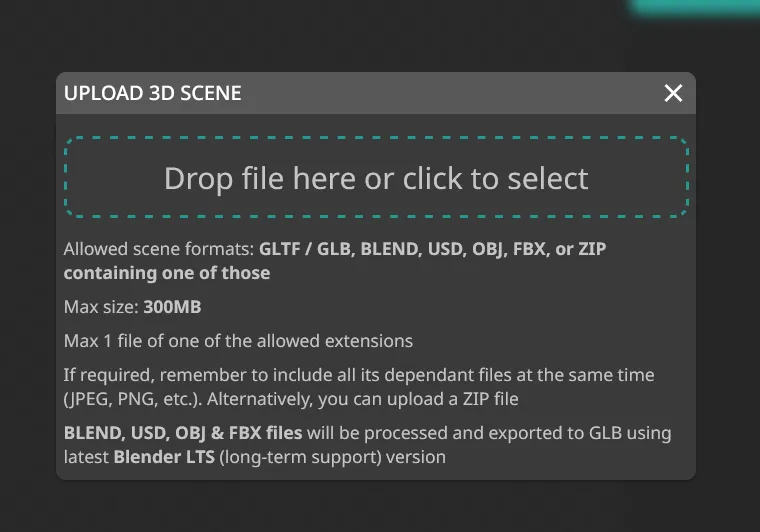
- Open the “Upload 3D scene” dialog — In the project editor, click the Upload 3D scene button to open the dialog where you can select and upload your 3D scene files.
-
File selection and validation — You select one or more files (via drag-and-drop or a file picker). The editor validates the selection client-side before any upload begins:
- At least one file must match a supported 3D scene format (see Supported formats below).
- The combined size of all selected files must not exceed 300 MB.
- Only one scene file (the main 3D format) is allowed per upload. Additional files (textures, dependencies) may be included alongside it.
-
Upload — Files are uploaded to Edro 3D server.
-
Processing — After upload, Edro 3D starts a processing job. The editor shows a progress indicator while the job runs. When the job finishes, the result is shown as either a success or an error with a log.
Supported formats
Section titled “Supported formats”.gltf / .glb (GL Transmission Format)
Section titled “.gltf / .glb (GL Transmission Format)”glTF is an open standard for 3D scenes developed by The Khronos Group, designed for efficiency and broad compatibility.
.glbfiles are self-contained binary packages that embed geometry, textures, and all dependencies. Uploading a single.glbfile is sufficient..gltffiles store geometry and textures in separate files. When uploading a.gltf, you must also select all dependent files (.bin,.jpg,.png, etc.) in the same upload.
Edro 3D supports all features of the core glTF 2.0 specification, as well as the following extensions:
- EXT_mesh_gpu_instancing
- KHR_animation_pointer
- KHR_draco_mesh_compression
- KHR_lights_punctual
- KHR_materials_emissive_strength
- KHR_materials_ior
- KHR_materials_sheen
- KHR_materials_specular
- KHR_materials_transmission
- KHR_materials_unlit
- KHR_materials_volume
- KHR_texture_transform
.blend (Blender)
Section titled “.blend (Blender)”.blend files are native files from Blender, the open-source 3D modeling application.
Uploaded .blend files are processed on Edro’s servers using the latest available Blender LTS version. Processing exports the scene to GLB format using Blender’s built-in glTF exporter. See the Blender manual for details on that export pipeline.
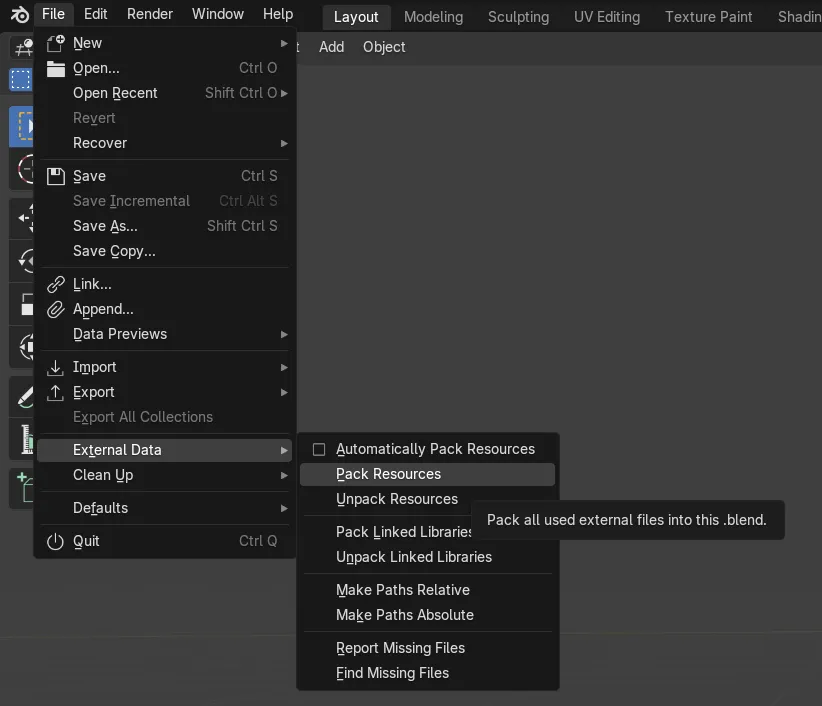
Only a single .blend file is supported per upload. Blender allows splitting scene data across multiple .blend files (for material or mesh catalogs), but the Edro 3D uploader does not support multi-file .blend setups. Before uploading, ensure the file is self-contained. You can use Blender’s Pack Resources or Automatically Pack Resources feature to bundle all dependencies into a single file.
.usd / .usdc / .usda / .usdz (Universal Scene Description)
Section titled “.usd / .usdc / .usda / .usdz (Universal Scene Description)”USD files are processed using the latest Blender LTS version. The process imports the file into Blender and exports it to GLB. If the result is not as expected, performing this import/export manually in Blender can help identify compatibility issues.
.obj (Wavefront OBJ)
Section titled “.obj (Wavefront OBJ)”OBJ files are processed using the same Blender LTS import-and-export-to-GLB pipeline as USD. Associated material (.mtl) and texture files can be included alongside the .obj in the same upload.
FBX files are processed using the same Blender LTS import-and-export-to-GLB pipeline as USD and OBJ.
ZIP archives can be used to bundle a scene file together with all its dependencies (textures, material files, etc.) in a single upload. The archive must contain exactly one file matching a supported 3D scene format.
Constraints and limits
Section titled “Constraints and limits”| Constraint | Value |
|---|---|
| Maximum combined upload size | 300 MB |
| Scene files per upload | 1 |
| Dependency files per upload | Unlimited (within the size limit) |
Processing jobs
Section titled “Processing jobs”All 3D scene uploads require server-side conversion, and are handled asynchronously as jobs. A job is created when you trigger processing and runs on the server independently of your browser session.
Job states
Section titled “Job states”| State | Meaning |
|---|---|
| Ongoing | The job is currently running. |
| Success | Processing completed without errors. |
| Error | Processing failed. A result log is available. |
Viewing jobs
Section titled “Viewing jobs”You can open the Jobs panel from the editor toolbar at any time to see all jobs for the current project, including their start time, finish time, and status. For completed jobs, a View logs button opens the full result log output, which is useful for diagnosing processing errors.